Nov 27

Here you are trying to setup vCenter Orchestrator and you get this error: SSL exception, ‘SSL certificate is missing for this host’

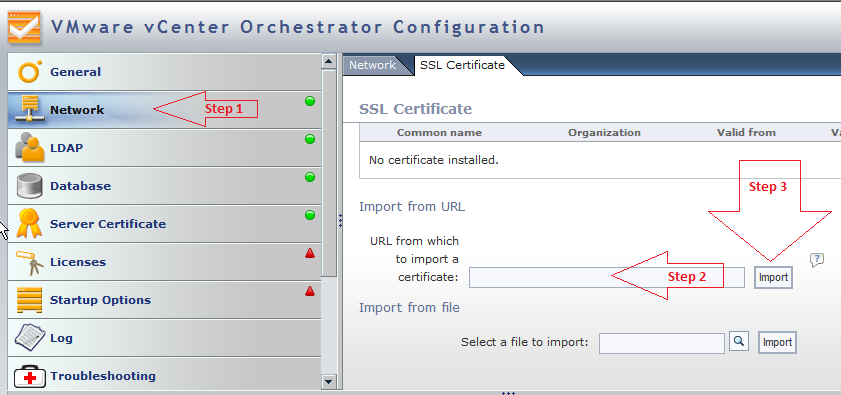
What vCenter Orchestrator is saying is that it doesn’t have the certificate installed for that host, unlike other apps/programs, Orchestrator doesn’t offer an option automatically install these certificates upon inital connection.  You have to first add the certs then connect to the host, to do this: (refer the screenshot at the bottom if your stuck)

  1. Login to your vCenter Orchestrator Configuration Webpage: (http://vCenter-Orchestrator-Hostname:8282) – default user/pass is vmware/vmware
  2. Select Network from the left column
  3. At the top you’ll see a tab for SSL Certificate, click that
  4. You can either import the SSL certificate from a file, or from a URL–URL is the easiest as you just enter the hostname and Orchestrator installs the certificate
  5. In the URL box, just enter your vCenter hostname, then click Import to the right of that text box
  6. You’ll see the certificate details displayed if everything looks alright click Import at the bottom
  7. Repeat this process for each vCenter you plan to use Orchestrator with
  8. Go back to whatever step you were trying to do when you got the error: SSL exception, ‘SSL certificate is missing for this host’ and try it again, this time it should work successfully
Nov 25

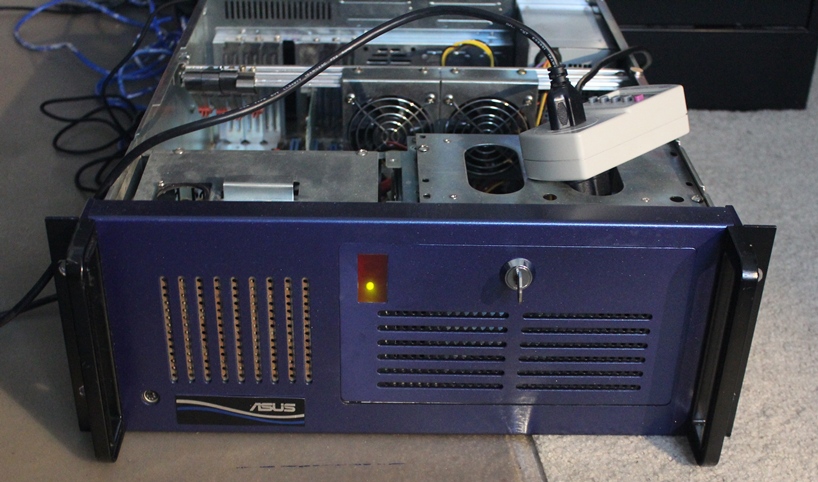
So it’s been awhile since my last post on Building a Cost-Effective vSphere ESXi 5.0 Home Lab–I have been playing with this system now for a few weeks and am loving it–I’ve ordered parts for a 2nd system and might spring for a 3rd…Remember that the chip on this motherboard supports AMD-V, so you can do practicably everything except for VMDirectPath I/O with this system.

I’ve been running upwards of 7 VMs on it at once and have had no real problems.  Yes ready times can get high, but I’ve never had them over 30% under that kind of load.  Again this is a home lab, and somewhat high ready times don’t effect anything except a couple extra seconds here or there when I am doing something intensive.

This little box rocks for a home lab, the key thing to remember is that it IS a home lab–run everything with 1vCPU and minimal amounts of ram assigned.  (I don’t have a single VM over 1Gb of RAM assigned).  The biggest slow down in my experience with this system comes from swapping on local storage–not CPU contention.  (I haven’t connected this to my OpenFiler box yet)  Read the rest of this entry »

Nov 24

This is the beginning of a little standalone identity management project me and Kevin are working on for IPSwitch’s WhatsUp Gold product.

Overview:

This “WhatsUp Enterprise New User System” aka WENUS enumerates a configured LDAP Group (and any nested groups) for user accounts–any users that do not exist in the WhatsUp are created automatically.  It also reads the user account’s department attribute and creates access to the device group that has a matching device group description.  In our case we have ~200 remote sites, at each of those sites there are up to 2 techs who use WhatsUp to monitor systems at each site.  These remote sites are broken out into Device Groups, we populated all the device group description fields with the corresponding site/dept code–which is also populated in the user account’s LDAP department attribute.  This script can be run nightly or weekly to ensure the proper folks get access to only their respective area.  Furthermore it outputs to the WhatsUp System Activity Log, so you can see new users being created, and any errors there.

This was written for WhatsUp Gold v15 but should work on older versions–perhaps requiring slight modifications.

WENUS Features:

  • Enumerates a LDAP Group (and any nested groups) to create WhatsUp User Accounts when additions are made to the group
  • Scopes WhatsUp Device Group Security based on Department LDAP attribute & Matching WhatsUp Device Group Description fields
  • Outputs to the WhatsUp System Activity Log – any Creates and any Errors are logged centrally.
SQL Server credentials are required to be put into this script, to prevent this from being accessible via clear-text you can use Microsoft’s Script Encoder to encode this VBScript so Username/Password won’t be easily readable.  Download @ http://www.microsoft.com/download/en/details.aspx?displaylang=en&id=3375
This script was created to be adapted with minimal effort to other systems, feel free to let me know if you modify this to support other systems/products.
Disclaimer: Safety is not guaranteed, test this before rolling into production.

Read the rest of this entry »

Nov 23
Location of VMware log files
icon1 Michael Requeny | icon2 VMware | icon4 11 23rd, 2011| icon3No Comments »

Having problems?  You should check the logs for anything obvious–

vCenter Server:

  • Windows Server 2003 and earlier - %ALLUSERSPROFILE%\Application Data\VMware\VMware VirtualCenter\Logs\
  • Windows 2008 and later - %ALLUSERSPROFILE%\VMware\VMware VirtualCenter\Logs\
  • Linux vCenter Server 5.0 Virtual Appliance  – /var/log/vmware/vpx

ESXi Hosts (v3.5 – v5.x):

  • /var/log/messages – VMkernel – Devices, drivers, VM stuff, as well as hostd and vpx logs
  • /var/log/vmware/hostd.log – Host service stuff – Host & VMs Tasks & Events, vSphere Client stuff, vCenter Agent (vpxa) and SDK stuff
  • /var/log/boot-logs/sysboot.log – More VMkernel startup including modules and other boot bits
  • /var/log/vmware/vpx/vpxa.log – vCenter (vpxa) agent logs & hostd logs
  • /var/log/vmware/fdm/* – HA Logs – vCenter 5.0 and later
  • /var/log/vmware/aam/* – HA Logs – vCenter 4.1 and older

ESX Hosts: (v3.x and v4.x):

  • /var/log/messages – Service Console Kernel – Services stuff will be here
  • /var/log/vmkernel – VMkernel – Devices, drivers, VM stuff
  • /var/log/vmkwarning – VMkernel Warning messages — these should also be in the vmkernel log file
  • /var/log/vmksummary – Host startup/shutdown stuff, hourly log output showing uptime, # of VMs running, service console resource usage
  • /var/log/vmware/hostd.log – Host service stuff – Host & VMs Tasks & Events, vSphere Client stuff, vCenter Agent (vpxa) and SDK stuff
  • /var/log/boot-logs/sysboot.log – More VMkernel startup including modules and other boot bits
  • /var/log/vmkiscsid.log – Logs for the Software iSCSI Client
  • /var/log/vmware/vpx/vpxa.log – vCenter (vpxa) agent logs & hostd logs
  • /var/log/vmware/fdm/* – HA Logs – vCenter 5.0 and later
  • /var/log/vmware/aam/* – HA Logs – vCenter 4.1 and older
Nov 21

If your trying to configure vCenter Orchestrator to use a local Microsoft SQL Express database and you get the error: Unknown host: Error when connecting to host localhost/127.0.0.1, port 1433: Connection refused: connect

You need to change a few options on your SQLExpress server to accept this connection.

  1. Launch SQL Server Configuration Manager
  2. Navigate to SQL Server Network Configuration->Protocols for SQLEXPRESS on the left column
  3. Double-Click on TCP/IP
  4. Ensure Enabled is set for Yes
  5. Ensure Listen All is set for Yes
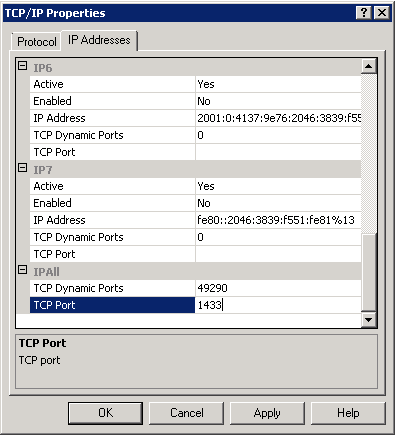
  6. Click the IP Addresses Tab
  7. Scroll to the bottom and find IPAll
  8. Set TCP Port to 1433 for IPAll
  9. Hit Ok, and Ok to the dialog box that pops up
  10. Navigate to SQL Server Services on the left column
  11. Right-Click SQL Server (SQLEXPRESS) and select Restart
  12. Try again and your Orchestrator server should be able to connect to the database now
Nov 20

So you decided to take the plunge and buy the Dell Management Center vCenter Plugin but it’s not registering with your vCenter?  In my case, the virtual appliance spit out all kinds of errors–SSL errors, unknown errors, timeouts…
Well, the fix for me was simple–apparently Dell doesn’t make the latest version avaliable online, you may have downloaded an older version from Dell’s site and Dell expects you to simply update the appliance online after you deploy it.
To do this:

  1. Login to the appliance admin portal with your previously set admin password (https://[ApplianceIP]/DellAdminPortal/index.html)
  2. Now navigate to Appliance Management on the left column
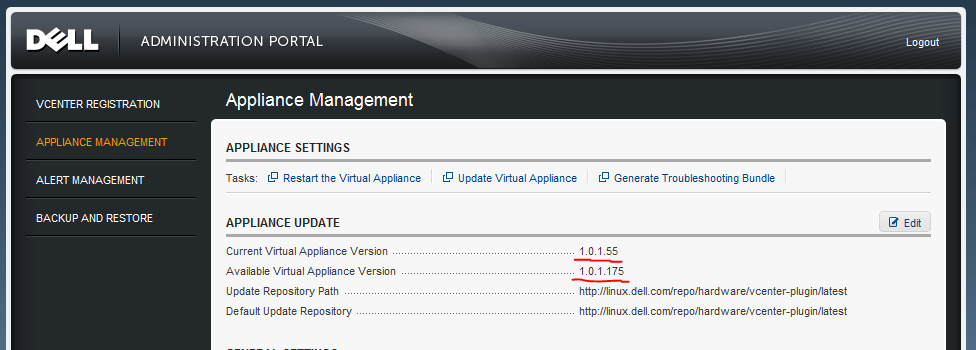
  3. On this page you’ll see 2 lines near the top: Current Virtual Appliance Version and Available Virtual Appliance Version, if the Available version is higher then the current, click Update Virtual Appliance to install the update

  4. It takes about 5-10min to complete, the virtual appliance will reboot at some point, once you get a login screen at the console it should be ready to proceed
  5. Go back to the appliance URL in your web browser and login (https://[ApplianceIP]/DellAdminPortal/index.html)
  6. From here you’ll see a link to register with vCenter near the top–click that
    1. Enter the IP or Hostname for your vCenter server
    2. Provide User Credentials with admin access in vCenter & hit register
  7. Once registration is complete you will get a message to relaunch a vSphere Client and connect  to the vCenter to access the plugin, so do that and go about configuring the rest of the plugin.
Nov 17

This is another updated version with more Intel removal goodness…see my previous post for more information on Automated P2V Cleanup: Remove/Uninstall Dell OpenManage & Broadcom/Intel Drivers Updated so it removes all the new Dell/Intel/Broadcom stuff released since the last update.

This Removes:

  • Dell OpenManage Server Administrator
  • Broadcom Drivers and Management Applications
  • Broadcom NetXtreme II Driver Installer
  • Intel(R) PROSet for Wired Connections
  • Intel(R) PRO Network Connections

Read the rest of this entry »