 Michael Requeny |
 06 10th, 2011|
VMware vCenter Mobile Access (vCMA) is a cool fling from VMware Labs. It allows mobile access to your vSphere environment via your vCenter(s).  Setting up vCMA takes very little effort as it is packaged as a virtual appliance.  You simply download vCMA as an OVF, deploy the OVF Template, and power on vCMA.  Once powered on, config the network and your ready to go.  Note that vCMA does not use a service account or static connector to vCenter, each user will login to vCenter via vCMA with their own credentials–think of vCMA as a web-based version of the vSphere  Client.
May
21
With how many hits my 2008 R2 walkthrough got, I figured it was about time I do one for 2003 R2.
Remember to setup vCenter for Guest Customizations by placing the sysprep files for all the various versions of Windows in the proper locations, refer to this VMware KB Article for locations and instructions:Â VMware KB:1005593
Give your feedback, if you don’t agree with something let me know!
May
19
Checkout this awesome new Fling from VMware Labs, it’s called InventorySnapshot. Â Basically what it does is allows you to snapshot your vCenter and reproduce it on another vCenter. Â Say you were doing an out of place migration and didn’t want to bring your old database along for some reason, or just in your lab trying to replicate your production config. Â You don’t have to reproduce all the objects though, you can specifically restore just Resource Pool settings, DRS settings, Roles & Permissions, or again the whole damn inventory.
InventorySnapshot supports reproducing the following vCenter objects:
- Datacenter Folders
- Datacenters
- Clusters
- Resource Pools
- vApps
- Hierarchy
- Roles & Permissions
- Configuration Settings
- Custom Fields
As you can see the only major item they are missing is Alarms, which they are working to support. The developers Balaji Parimi and Ravi Soundararajan did an excellent job documenting their Fling with a 17 page doc, they took the time to write a large troubleshooting and layout a few caveats/known bugs. Read the rest of this entry »
May
14
Slow Clones?  Deploying from Template Slow?
Before we dive into the tips do yourself a favor checkout these VMware KB Articles first:
- VMware KB 1004002 – Diagnosing slow deployment of templates or clones from vCenter Server
- VMware KBÂ 1004028 – Deploying a single template is slow
- VMware KB 1003469 – Tuning ESX for better storage performance by modifying the maximum I/O block size
Read the rest of this entry »
May
1
VMware has an blog area dedicated to publishing Resolution Maps to assist you in problem resolution. Â Now they are interactive Flash-embedded PDFs that you can drill down through to find resolutions for problems you are having.
Two new ones recently posted:
Troubleshooting vSphere Network Issues which covers:
- Performance
- Host Connectivity
- Guest (VM) Connectivity
- vSwitch
Troubleshooting vSphere Management Issues which covers:
- Performance
- High Availability
- Templates
- vMotion
- Host Disconnects/Hosts Won’t Connect
- VMs Won’t Start/Stop
Browse around and find more Resolution Maps covering: Update Manager, Fusion
May
1
VMware Partners get access to a very nice tool called Capacity Planner–this is what VMware Partners use to come in and do an assessment of your environment and determine what can be virtualized, and how many hosts are required to make it happen. Â VMware Partners use the tool free of charge from VMware–the partners and are encouraged to do these assessments at no cost for customers (after all, the results from a capacity planner assessment leads into a vSphere PoC for new customers typically). Â However that left customers crying that they should have something they can run themselves–why should they have to bring in a partner to do this?
VMware answered customers by creating  vCenter Guided Consolidation–it doesn’t pack anything near the features VMware Capacity Planner does–but it offers the very basic functionality of if a particular server (and associated workload) is a good candidate for virtualization.
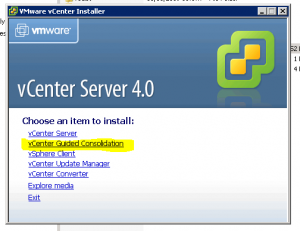
Installing Guided Consolidation
So you need vCenter for this if it wasn’t apparent.  It’s simply a plugin to vCenter–now the install process actually stumped me for a bit, I browsed the vCenter media for the installer and came up empty handed…then a college pointed me to the Autorun menu on the vCenter media and I face palm’d…I never let Autorun actually run–haha.
Poking around wanting to find the installer after seeing it in the Autorun menu I found that damn installer. Â It’s at ./vpx/VMware-gcs.exe on the media. Â GCS-Perhaps Guided Consolidation Server?
Using Guided Consolidation
This is broken up into 3 main steps:
- Find – Discover your physical servers
- Find offeres these ways to discover
- Manually enter Hostname/IP Addresses
- Domain Discovery — via Active Directory Domains
- Scan an IP Range
- Suck in a text file containing a list of Hostnames/IP addresses to scan
- Find offeres these ways to discover
- Analyze – Perform analysis on the servers to determine if they are good candidates for virtualization
- Once a machine is actually being analyzed this is where Guided Consolidation can use some improvement–there is no log or status as to what is happening–you typically have to wait at least an hour before any status changes appear.
- Also note that confidence won’t change to High until it analysis has been in-progress for at least 12 hours (might be 24 actually) so don’t be alarmed
- Consolidate – Complete the actual consolidation by P2V
- Another area that has ALOT of room for improvement in Guided Consolidation
- After you are happy with the analysis of a server select it then click the Plan Consolidation button.
- A wizard appears that one would think would offer similar functionallity when doing P2Vs using regular VMware Converter–but no, it’s not the same at all.
- Select your destination(s) vcenter/cluster/hosts
- Guided Consolidation will analyze the hosts and recommend the best destination for the VM with the Amazon-esc 5-Star rating icons.
- Review the recommendation–you can change the destination host as well as destination VM name in this window
- Once you click next, you have one more chance to review….and then a finish button?! what?–I want to change vCPUs, Memory, Target Disk Layout!
And so now you can see the limitations of Guided Consolidation–it’s great at the core function of determining if a server is a good canidate to virtualize or not–however the built in P2V process leaves alot to be desired for the seasoned VMware Admin. Â I recommend you use the analysis portion and continue to use vCenter Converter to perform the actual P2V so you have more control over the P2V process–changing Target Disk Layouts, vCPU count, Memory amounts, etc.
For more information on VMware vCenter Guided Consolidation check out the vSphere 4 Admin Guide @ VMware.com
Apr
26
PXE Manager for vCenter enables ESXi host state (firmware) management and provisioning, Specifically, it allows:
- Automated provisioning of new ESXi hosts stateless and stateful (no ESX)
- ESXi host state (firmware) backup, restore, and archiving with retention
- ESXi builds repository management (stateless and statefull)
- ESXi Patch management
- Multi vCenter support
- Multi network support with agents (Linux CentOS virtual appliance will be available later)
- Wake on Lan
- Hosts memtest
- vCenter plugin
- Deploy directly to VMware Cloud Director
- Deploy to Cisco UCS blades
What does that mean?  It automates the provisioning of ESXi hosts in either a stateless or stateful mode.  (notice no ESX support here!) via network boot using Pre-boot eXecution Environment (PXE)
How does that work?
Remember ESXi has a very small footprint–it’s quite small that PXE booting ESXi is very easy.
Stateless and Stateful?
Stateful means the host keeps the “ESXi state” upon reboot–meaning the same version. Â Think back to Microsoft RIS (remote installation services) days for VMware ESXi.
Stateless means the host doesn’t keep the ESXi state upon reboot. Â Why the heck would you want to do that you might ask? Â I say why the heck wouldn’t you want to do that? Â Patching and upgrades becomes a breeze, throw a host into maintence mode–all the VMs evacuate to other hosts in the cluster then reboot the host. Â When it comes up it’s running the latest and greatest version of ESXi. Â No extra leg work patching the host, it gets it automatically upon boot! Â Think of the possibilities with DPM in the mix, a good amount of your environment can be automatically upgraded nightly when hosts get powered back on by DPM.
Provisioning
Provisioning becomes much easier–no need to install ESXi, and along with that the extra hardware required (SD Cards + Reader, Mirrored OS Drives, etc.) Â Just rack new hardware and configure the BIOS for PXE boot and go!
Want to learn more? Â Max Daneri threw together a great overview powerpoint
Ready to download? Grab it from VMware Labs and while your there check out other cool new things VMware is working on.
Apr
22
When using guest customization specifications in vCenter you may come across the following error when deploying a VM using a specification:
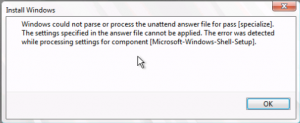
Windows could not parse or process the unattend answer file for pass specialize.  The settings specified in the answer file cannot be applied.  The error was detected while processing settings for component [Microsoft-Windows-Shell-Setup].
The Solution
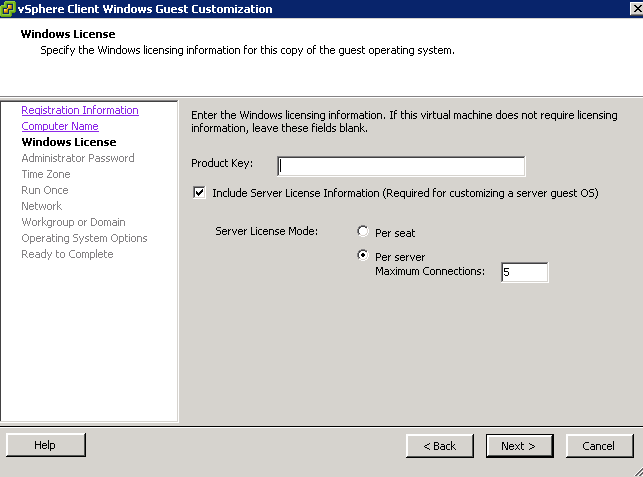
Edit the specification and double check your product key, an invalid key is a common reason for this error.  In my experience Windows 2008 and Windows 2008 R2 keys cannot be interchanged–yet I see this attempted to be done in guest specifications.
Apr
3
Your just going about your day, trying to P2V a machine using the Cold Clone when you get the error: Unable to determine Guest OS
You check the client log and don’t find anything helpful:
|
1 2 |
vmware-converter-client-0.log [2011-02-15 09:35:08.718 'P2V' 840 error] [task,296] Task failed: P2VError UNABLE_TO_DETERMINE_GUEST_OS |
Then you check the agent log and it sheds light on the problem:
|
1 2 3 4 5 |
vmware-converter-agent-0.log [#3] [2011-02-15 09:35:23.000 'App' 268 warning] [attachedDiskWin32,499] Warning: no attached disks were detected. [#3] [2011-02-15 09:35:23.000 'App' 268 error] [slave,359] No local disks were detected, so no local host config info. [#3] [2011-02-15 09:35:23.000 'App' 1072 error] [importSource,369] Unable to read OS info from system disk: vmodl.fault.SystemError [#3] [2011-02-15 09:35:23.000 'App' 1072 error] [imageProcessingTaskImpl,572] VmiQuerySourceInfoTask::task{2}: Image processing task has failed with MethodFault::Exception: sysimage.fault.UnableToDetermineGuestOs |
Looks like WinPE didn’t find a suitable driver for our storage adapter. Â Not a problem heres the steps to correct this:
Mar
25
So you P2V’d a Linux box (CentOS, RedHat, Oracle, etc.) that is using LVM and now when it boots you get:
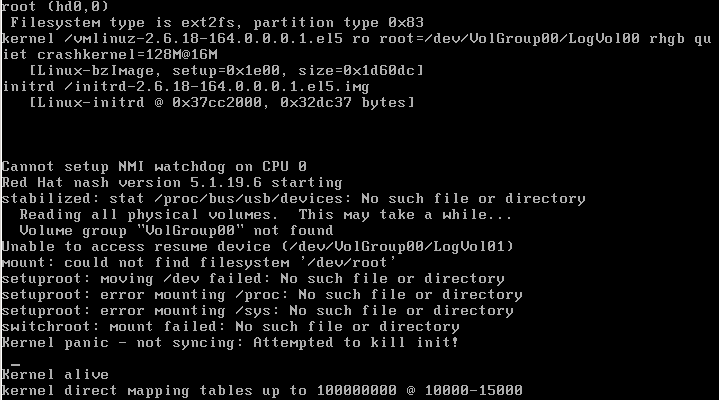
Reading all physical volumes. This may take awhile…
Volume group “VolGroup00” not found
Unable to access resume device (/dev/VolGroup00/LogVol01)
mount: could not find filesystem ‘/dev/root’
setuproot: moving /dev failed: No such file or directory
setuproot: error mounting /proc: No such file or directory
setuproot: error mounting /sys: No such file or directory
switchroot: mount failed: No such file or directory
Kernel panic – not syncing: Attempted to kill init!
Well that sucks–basically initrd didn’t have the right drivers to access the file system.
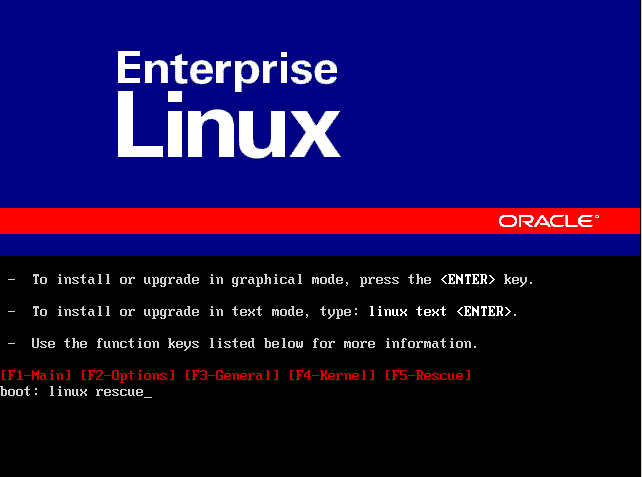 Reboot the VM with the Linux distro ISO attached
Then it boots from the CD follow the instructions to enter Linux Rescue (usually you type “linux rescue” at the boot prompt)
Now we can rebuild initrd with the missing drivers.
Enter:
|
1 |
chroot /mnt/sysimage |
|
1 |
cd /boot |
Type:
|
1 |
mkinitrd -v -f initrd |
Now hit tab and it will auto complete then add the text that was autocompleted when you hit tab except for the .img
So your command should look like:
|
1 |
mkinitrd -v -f initrd2.4.18-19.8.0.img 2.4.18-19.8.0 |
Hit enter and it will do it’s thing with a lot of output coming out, when it’s done type exit annd exit again and the VM will reboot automatically. Â Should boot up just fine this time.
